Category: Uncategorized

  • Printer Keeps Jamming? Complete Fix & Prevention Guide

    Printer Keeps Jamming? Complete Fix & Prevention Guide

    Why Does My Printer Keep Jamming? A Complete Guide to Paper Jam Fixes and Prevention

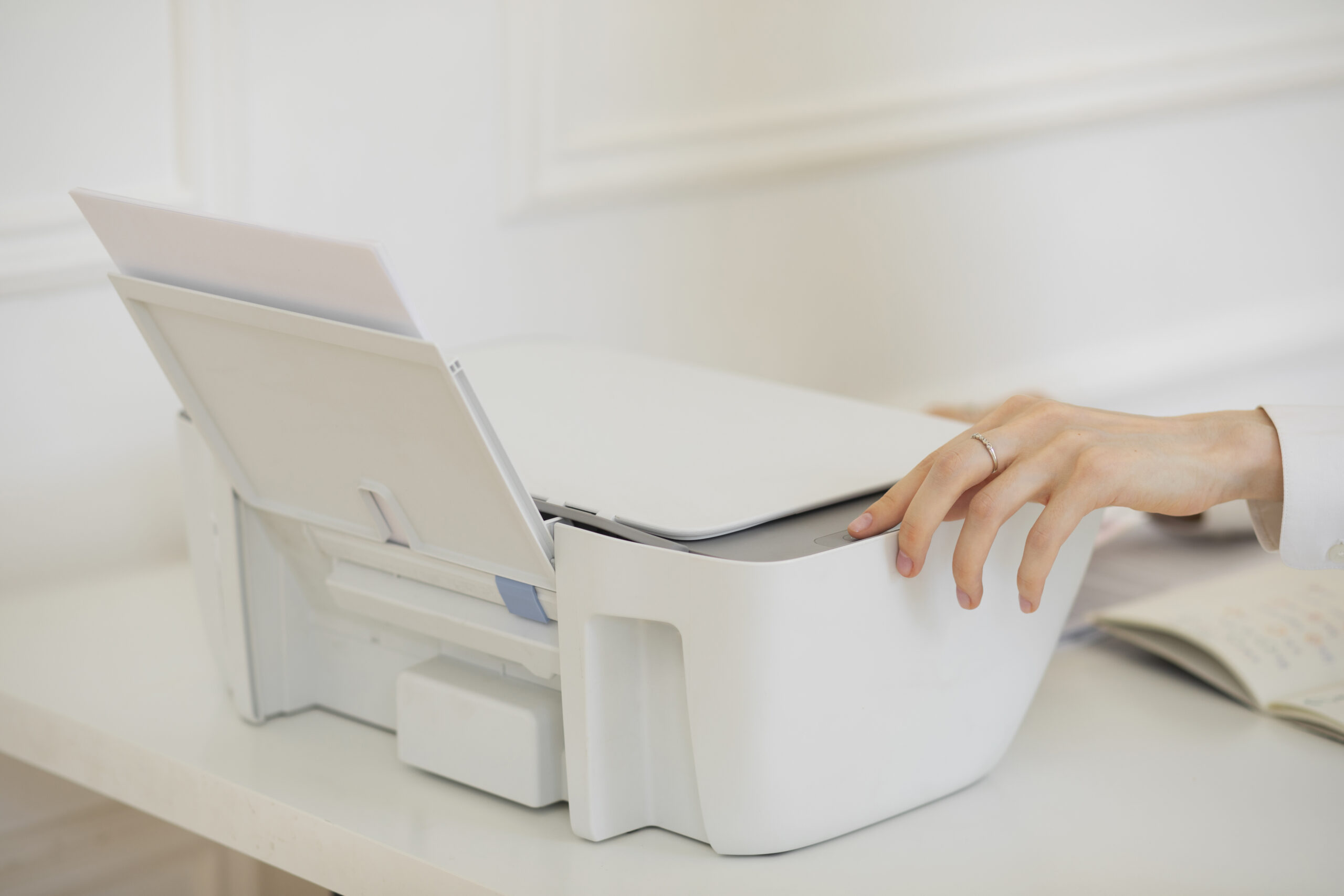
    Person inspecting a printer for paper jam
    Why Does My Printer Keep Jamming? A Complete Guide to Paper Jam Fixes and Prevention
    Paper jams are disruptive — this practical guide shows why they happen and how to stop them for good.
    Brand-neutral • Home & Office • All major printer types (laser, inkjet, multifunction) • Practical checklists & prevention routines

    Why printers jam — the common causes

    Paper jams are rarely mysterious — they are symptoms of a mechanical or environmental mismatch. The most common causes fall into five categories: the media (paper) itself, the physical feed path (rollers, guides, sensors), operator handling (overfilled trays, folded or ripped sheets), environmental factors (humidity, dust), and software/settings (wrong paper size, duplex settings).

    Understanding these categories helps you prioritise fixes. For example, a laser printer that only jams on heavy cardstock most likely needs a setting or tray change; a unit jamming randomly on ordinary A4 suggests feed roller wear or contamination. Before touching anything internal, identify when the jam happens — during pickup, mid-print, at the fuser, or at the output stack. That single observation often points directly to the problem area.

    Where jams commonly occur

    • Input tray / pickup stage: Sheets fail to separate and feed together.
    • Inside the paper path: Skewing from warped rollers or guides.
    • Fuser / exit area: Sheets stick due to heat or heavy toner build-up.
    • Duplex unit: Heavy or damp paper can fold during the flip, causing jams.
    • Output tray: Output stack interference or full trays causing back-pressure.

    Start by watching a single job to see exactly where the paper stops — this diagnostic reduces guesswork dramatically.

    First-aid: How to remove a jam safely

    Removing a jam incorrectly can break gears or tear paper, leaving fragments that cause repeat jams. Follow a calm, step-by-step approach.

    1. Pause the job and turn the printer off (for many printers turning off lets the rollers ‘relax’ and reduces damage risk).
    2. Open covers in the order recommended by the manufacturer. Each model has marked release points; use them.
    3. Pull the paper slowly in the direction of the paper path. Forcing it back against the rollers risks tearing or bending.
    4. Check for small scraps and remove any torn bits with tweezers or a soft lint-free cloth.
    5. Close covers, power on, and print a short test page. If the jam persists, document where it reappears and move to targeted maintenance.
    Tip: If paper is hot near the fuser, wait a little for it to cool. Trying to pull a hot, fused sheet too quickly risks burns or tears.

    Method 1 — Paper handling & media selection (first line of defence)

    Good paper handling prevents more jams than any internal repair. Most printers are forgiving, but they expect predictable media. Follow these rules:

    Choose the right paper

    Use paper sized and specified for your printer. Laser printers favour papers with a slightly higher weight and a lower moisture content; inkjets prefer papers optimised for ink absorption. Avoid mixing papers in the same tray — different weights and finishes feed differently and cause double-feeds.

    Inspect your paper

    Before loading, fan the stack to separate sheets, align the edges, and remove curled, bent, or creased sheets. Never load damp or wrinkled paper.

    Load correctly

    Do not overfill trays. Most input cassettes have a published capacity; leaving a 3–5 mm gap prevents tight compression at pickup which causes multi-feed. Use the guides — misaligned guides create skew and misfeeds.

    Preferred settings

    Set the paper type/weight in the driver or control panel. When printing in duplex, increase the recommended paper thickness or choose a heavier setting to account for the reverse pass. For heavier stock, use the dedicated rear feed or manual feed tray if available — these paths are usually straighter and gentler.

    Avoid cheap recycled single-use stock for critical jobs

    High-volume recycled or low-quality stock can have variable thickness and moisture and increases jam risk. If you must use it, test a ream first and adjust environment and feed settings accordingly.

    Checklist: Fan & align • Remove curled sheets • Don’t overfill • Use guide stops • Set driver paper type

    Method 2 — Paper path inspection & cleaning (prevent and resolve mid-path jams)

    Contaminants such as dust, paper fibres, and toner dust build up on rollers and guides. This reduces friction and causes sheets to slip or catch. Regular inspection and gentle cleaning restores reliable feeding.

    Tools and materials

    • Lint-free cloth or microfiber
    • Isopropyl alcohol (70% or higher) — sparingly
    • Compressed air (short bursts)
    • Soft brush for corners
    • Manufacturer-approved roller cleaner (optional)

    Step-by-step cleaning

    1. Power off and unplug the printer.
    2. Open panels to expose the paper path (follow the user manual).
    3. Gently brush away loose dust and paper bits; use compressed air in short bursts away from the fuser.
    4. Dampen a lint-free cloth with alcohol and wipe rollers in the rotation direction. Avoid saturating; too much liquid can damage pads.
    5. Clean pickup pads and separation pads (small angled pads near the tray) — these are critical for preventing multi-feed.
    6. Inspect sensors (usually small transparent windows). Clean them with a dry cloth to remove dust that can mis-read page presence.

    After cleaning, reassemble and run a multi-page test print. If misfeeds continue from the same region, the roller may be worn (see Method 3 / Advanced).

    Note: Never use household cleaners or solvents around the fuser — they can damage heat-sensitive components.

    Method 3 — Feed rollers and separation maintenance (wear and replacement)

    Feed rollers wear with use. They rely on a slightly tacky finish to grip paper. When smooth, they slip and pull multiple sheets or none at all. Replacement is often inexpensive and dramatically improves reliability.

    Identify worn rollers

    • Visible glazing (shiny smooth areas)
    • Skewed feeds and repeated multi-feeds
    • Loud squeaking during pickup

    Replacing rollers

    Refer to the service manual for part numbers and replacement procedure. Most modern printers have modular roller assemblies that twist out or release via clips. Replace with OEM or manufacturer-recommended parts — generic parts can fit but may not match texture and diameter, affecting feed pressure.

    Budget & lifecycle

    Roller life is usually expressed in pages (e.g., 100k pages). For small offices, annual replacement of pickup and separation rollers can prevent most jams. For heavy use, inspect quarterly.

    Temporary fixes

    If replacement isn’t immediately possible, clean rollers as in Method 2 then roughen the surface lightly with a very fine abrasive pad — only as a temporary measure and only if the manufacturer permits it. This restores grip briefly but is not a long-term substitute for replacement.

    Method 4 — Firmware, drivers & settings (software-side causes)

    Sometimes the printer behaves badly because of mismatched settings rather than mechanical failure. Driver settings that don’t match the physical path can cause the printer to attempt a feed that doesn’t exist, resulting in a jam error.

    Check the driver and tray mapping

    Ensure the selected input tray in the print dialog matches the tray you used. Duplex settings, special paper sizes, and manual feed selections are common mismatches.

    Update firmware

    Printer firmware fixes feed timing, sensor thresholds, and known mechanical bugs. Check the vendor site for firmware releases and apply them carefully (follow instructions, keep the printer powered during update).

    Reset to defaults

    If you’ve tried multiple manual settings, a factory reset of the printer configuration can eliminate corrupted config states. Document custom settings first, then perform a reset and reconfigure.

    Why firmware matters

    Modern printers coordinate pickup timing with motor control. Firmware tweaks adjust acceleration and sensor debounce — small changes that can greatly reduce jams.

    Method 5 — Environmental controls & storage

    Paper and environment interact. Humidity is a major player: damp sheets stick, curl, and misfeed. Heat and air currents can also cause edge curl or static issues.

    Store paper correctly

    • Keep sealed in the original wrapping until use.
    • Store upright in a cool, dry place (ideally 20–22°C, 30–50% relative humidity).
    • Allow cold or recently delivered paper to acclimatise for 24 hours before use.

    Control humidity

    In very dry climates (low humidity), static causes sheets to cling; in damp climates, sheets stick together. Use a small humidifier or dehumidifier as appropriate in print rooms, or keep a sealed cabinet for stock.

    Avoid direct sunlight and heaters

    Heat can warp stock and accelerate fuser issues. Place printers on stable surfaces away from radiators and windows.

    Colleagues inspecting printer rollers together
    Consistent handling and environment minimise jams in shared offices.

    Advanced fixes: rollers, fusers & hardware replacements

    When routine maintenance does not eliminate jams, advanced repairs may be necessary. These can include replacing the fuser assembly, feed clutch, registration roller, or internal separations.

    Fuser problems

    The fuser bonds toner to paper using heat. If the fuser surface becomes rough, wrinkled, or the pressure roller fails, sheets can stick or fuse partially, tearing during ejection. Fuser smells, discoloured areas on output, or consistent jams at the exit point indicate fuser issues. Fuser replacement is often a mid-to-high cost repair but resolves many exit-area jams.

    Registration roller

    The registration roller times the paper into the imaging drum. If it slips or is worn, the image timing is off and paper may be gripped incorrectly, causing mid-path jams. This part is simpler to replace than a fuser and is commonly included in service kits.

    When to seek professional service

    • Repeated jams after cleaning and roller replacement
    • Visible mechanical damage (broken gears, cracked guides)
    • Burnt smells or smoke
    • High-cost parts where repair cost approaches replacement cost

    Local authorised service centres can diagnose gear wear, sensor faults, and motor issues that are not user-serviceable.

    Office rules and workflows that prevent jams

    In shared environments, user behaviour causes most repeat jams. Introducing small, sensible rules dramatically reduces issues and downtime.

    Shared printer etiquette

    • One job at a time: Avoid starting large jobs simultaneously — stagger them.
    • Preview before print: Prevent wasted sheets from overflow or unexpected blank pages.
    • Assigned paper types: Keep one tray for regular A4, another for envelopes, another for heavy stock. Label trays clearly.
    • Report problems immediately: A jam left in a unit will cause repeat failures for subsequent users.

    Training & signposting

    Short printed instructions near the device showing how to clear common jams and how to load paper reduce user error. A simple “If stuck, call X” note for serious issues is often helpful.

    Consumables inventory

    Maintain a small stock of spare rollers, pickup pads, and a service contract for high-volume devices to reduce lead time for repairs.

    Troubleshooting matrix

    SymptomLikely causeFirst actionIf still jammed
    Jams at pickup every job Dirty or worn pickup/separation rollers; overfilled tray Clean rollers; reduce tray fill; fan paper Replace pickup/separation pads
    Mid-path skewing and fold Misaligned guides or warped rollers Realign guides; inspect rollers Replace registration/transport rollers
    Jams near fuser, paper stuck hot Fuser wear or incorrect paper type Use recommended paper; allow cooling Fuser replacement
    Multiple sheets feed together Separation pad failure or static Clean separation pad; add anti-static measures Replace separation pad
    Intermittent jams on lengthy jobs Paper humidity or long-run heat buildup Use Ethernet/USB for long jobs; ensure paper acclimatisation Service sensors; consider tray rotation

    FAQs

    Why does my printer only jam with certain paper?

    Different papers have different thicknesses, surface coatings, and moisture levels. If jams only occur with one stock, it’s either the paper weight/finish or storage conditions. Test with the printer’s recommended paper and adjust the paper type setting in the driver.

    Can static cause paper jams?

    Yes. Static makes sheets cling and feed together. In dry climates use a humidifier or anti-static sprays recommended for print rooms. For immediate relief, lightly fan the paper or separate sheets before loading.

    Is it safe to use compressed air inside my printer?

    Short bursts of low-pressure canned air are safe for dust removal when used from a distance; avoid direct blasts at sensors or the fuser. Never use high-pressure shop air that could dislodge small parts.

    How often should I replace rollers?

    It depends on usage. For small offices, annually is a reasonable starting point; for heavy use, monitor pages printed and replace as the manufacturer recommends (often measured in tens of thousands of pages).

    What do I do if the jam message persists after clearing the paper?

    Check for small scraps left behind, verify all doors and trays are fully closed, and inspect sensors for dust. If the message persists, reset the printer (power cycle) and consult service logs or contact support.

    Quick checklists: daily, weekly, monthly

    Daily

    • Check input tray is not overfilled
    • Remove curled or torn pages
    • Empty output tray and avoid stack pressure

    Weekly

    • Inspect rollers visually for dust
    • Clean pickup pad and separation pad lightly
    • Run a short test print after cleaning

    Monthly

    • Perform a full paper path inspection and clean sensors
    • Rotate paper stocks to avoid long-term storage issues
    • Check printer firmware and apply safe updates
    Pro tip: Keep a small kit near the printer: lint-free cloths, isopropyl alcohol, tweezers, and a ream of recommended paper.

    Final thoughts: Prevent jams before they start

    Paper jams are predictable and—most importantly—preventable. The single best investments are disciplined handling (fan & align paper), environmental control (dry/flat storage), and a short maintenance routine (clean & inspect rollers). Combine those habits with sensible replacements (rollers and separation pads) and you’ll remove the majority of jams without a service call.

    If you still face repeated issues after trying the steps above, document the exact location and timing of the jam and consult an authorised service centre. They can test motor torque, sensor timing, and mechanical alignment in ways not possible at a basic maintenance level.

    Apply these routines and your printer will spend less time in error and more time producing clean, professional output.

    Resources & further reading

    • Manufacturer user manual (model-specific parts and diagrams)
    • Printer maintenance guides for consumable replacements
    • Local authorised service centres for advanced mechanical repairs
  • Printing Professional Documents at Home: Complete Guide

    Printing Professional Documents at Home: Complete Guide

    The Ultimate Guide to Printing Professional Documents at Home

    Professional home workspace with printer-ready documents
    Make Home Prints Look Office-Ready — Layouts, Fonts, Paper & Presets

    You can produce professional documents at home if you treat the page like a product: clear structure, readable type, consistent spacing, and the right paper and presets for the job. This guide walks through a practical, brand-neutral workflow that makes invoices, reports, proposals, certificates, and handouts look polished without expensive gear. You will learn how to choose efficient fonts, set reliable margins and spacing, prepare graphics and images that stay sharp while using less ink, select paper that supports duplex without show-through, and dial in print driver presets that prevent smudges and jams. Each step is straightforward and repeatable, so your documents look consistent every time.

    Scope: UK English, brand-neutral steps. Suitable for common home and small-office printers on Windows and macOS.

    Set up a clean page template

    Start with a template so every document shares the same skeleton. Choose the correct paper size (A4 in the UK), set margins that balance density with breathing room, define heading styles with consistent spacing before and after, and store a cover page and a content page variant. Save the file with your chosen font stack so nothing shifts when you open it next month. A good template removes last-minute decisions and keeps your print result stable across different machines.

    SettingRecommendedWhy it helps
    Page sizeA4 (210 × 297 mm)Standard for UK printing and filing
    MarginsTop 18–22 mm, Bottom 18–22 mm, Left/Right 18–22 mmGood balance of text density and white space
    Header/Footer10–12 mm from edgeKeeps content away from printer unprintable areas
    Body size11–11.5 pt (screen) → prints well at 100%Readable while keeping page count sensible
    Line spacing1.3–1.5Airy lines for long reading without wasting paper
    Tip: Store two templates: “Report (duplex, 90–100 gsm)” and “Final (single-sided, 100–120 gsm)”.

    Fonts, sizes, and hierarchy that read well

    Readable type is the strongest signal of professionalism. Choose a robust text face for body copy and a clean, bolder companion for headings. Avoid heavy display fonts for long paragraphs; they drink ink and tire the eye. Use bold sparingly and rely on size, spacing, and alignment to create hierarchy. For small home printers, avoid hairline weights that can fade and avoid ultra-thick weights that pool ink at junctions.

    ElementSize / WeightNotes
    H1Clamp 26–36px equivalentShort, specific titles work best
    H2Clamp 20–26px equivalentChunk sections; avoid long sentences
    H3Clamp 18–22px equivalentFor sub-points and short checklists
    Body~11–11.5 ptOn-screen 16px equals ~12 pt visual size
    Captions9–10 ptKeep contrast high for readability
    Remember: Use real styles in your editor (Heading 1, Heading 2, etc.). Manual formatting breaks consistency.

    Margins, spacing, and grid consistency

    Professional pages feel calm because they follow a rhythm. Use a simple vertical grid by setting consistent spacings before and after headings. Keep list styles aligned and avoid deep nesting that creates ragged edges. For long documents, add running headers with document title on the left and section name on the right, plus page numbers in the footer. Keep images aligned to the grid and use captions instead of full-width coloured bars.

    • Spacing rhythm: Set H2 spacing-before roughly twice the paragraph spacing.
    • Lists: Use short bullets, keep each bullet to one sentence when possible.
    • Columns: If using two columns, increase line-height slightly to avoid crowding.

    Preparing images, charts, and logos

    Person reviewing printed pages at a tidy desk
    Resize and export at the size you will actually print for crisp, low-ink results.

    Home printers do best with images prepared at the target print size and 200–300 dpi. For charts and logos, prefer vector sources or clean PNGs with sharp edges. Avoid heavy background tints and gradients that inflate ink coverage and risk smudges on duplex. For photographs, crop to the subject and avoid full-bleed unless your device supports it cleanly; small insets with captions look sharp and dry faster.

    AssetPreparationWhy it helps
    PhotosResize to placement width, 200–300 dpiLess ink, faster print, crisp detail
    ChartsUse labels; limit colours; avoid heavy fillsReadable in greyscale and duplex
    LogosVector (SVG/PDF) or high-quality PNGSharp edges at small sizes

    Colour use that looks smart and costs less

    Colour earns its place when it clarifies meaning. Use one accent colour for headings or dividers and keep body text in black for maximum legibility. Replace coloured backgrounds with white space and structured hierarchy. If your document will be printed on different devices, test a greyscale preview to ensure charts remain readable without colour dependence.

    • Accent sparingly: One highlight tone for headings and subtle rules.
    • Greyscale proof: Ensure charts and figures hold up without colour.
    • Accessibility: Avoid low-contrast tints for body text.

    Paper choice, GSM, and duplex

    Document and scanner on a bright office surface
    Choose stock by purpose: stiffness for duplex, finish for photos, and GSM for feel.

    For duplex documents, 90–100 gsm stock reduces show-through and curls less after the first side prints. For letterheads and small covers, 100–120 gsm adds stiffness without stressing the path. Glossy or coated media should be single-sided unless your printer explicitly supports duplex on coated stock. Store paper sealed and away from humidity to keep fibres stable.

    UseGSMFinishPreset tip
    Everyday duplex text90–100 gsmMatteThick/Heavy 1 for stable flips
    Reports & letters100–120 gsmMatte or satinPlain or Heavy 1 depending on device
    Photos / promos120–160 gsmGlossy/coatedPhoto/Glossy, single-sided

    Print driver presets that prevent issues

    Presets control speed, heat (for laser), and ink laydown. Set up a few named presets so you are never guessing at the print dialog. For text, greyscale normal mode is efficient and crisp; for duplex, step up to a thicker setting even on 90–100 gsm; for covers or heavier stock, use Heavy/Cardstock to slow the path and improve bonding. Save presets so anyone in the house can pick the right one in one click.

    Preset nameWhen to useCore settings
    Everyday (mono)Drafts, internal copiesGreyscale, duplex ON, normal
    Duplex-ThickReports with 90–100 gsmThick/Heavy 1, duplex ON
    Final SingleSubmission-ready pagesHigh/Normal, single-sided
    Covers/Labels120–160 gsm or labelsHeavy/Cardstock or Labels, manual feed

    Windows & macOS print workflows

    Windows 10/11

    • Open PrintPrinter Properties or Preferences → pick your saved preset.
    • For duplex reports, select Long-edge binding and confirm paper type is set to Thick/Heavy 1 if stock is 90–100 gsm.
    • Save as a custom preset so next time is one click.

    macOS

    • File → Print → from the drop-down (Layout/Paper Handling), choose Media Type and quality.
    • Set Two-Sided and binding edge, then click Presets → Save Current Settings as Preset.

    Proofing, preview, and last checks

    Always preview before printing. Check for widows and orphans, extra blank pages, and images that overspill margins. For tables, ensure totals are not stranded on a final sheet. Print a single page first when using new paper or presets. If you see faint lines or smudge, step the preset up one level or switch to a fresher paper stack.

    • Preview: Catch blank final pages and overspill.
    • Test page: One page first on new media or presets.
    • Margins: Keep key content 10–12 mm away from every edge.
    Person checking a final preview before printing
    Preview is the cheapest way to avoid reprints and last-minute surprises.

    Common problems & quick fixes

    ProblemLikely causeTry thisIf still bad
    Show-through on duplexStock too thinUse 90–100 gsm; reduce heavy fillsSwitch to Duplex-Thick preset
    Smudges on glossyWrong media typeSelect Photo/Glossy; single-sidedAllow longer dry time
    Jagged small textLow-res exportExport PDF text as text, not imageUse vector charts/logos
    Paper curls mid-jobHumidity / heatFlip stack curl-down; fresh sealed reamHeavier stock; lower density

    One-page checklist (follow this every time)

    • Template loaded • Styles applied (no manual overrides)
    • Images resized to placement • Charts labelled • Minimal fills
    • Paper selected for purpose • Preset chosen (Everyday / Duplex-Thick / Final Single)
    • Preview checked • One-page test • Full run
    Back view of a person working at a tidy desk with printed pages
    Consistency beats luck — the same few steps make every document look professional.

    FAQs

    What paper weight should I use for duplex reports?

    Pick 90–100 gsm matte stock. It reduces show-through and curls less, giving cleaner flips and sharper pages when printing on both sides.

    Do I need a special font for printing at home?

    No. Use a practical text face with regular weight and avoid ultra-thin or ultra-bold styles for body copy. The layout and spacing matter more than the brand.

    Are coloured backgrounds a bad idea?

    Yes for long documents. They consume ink, slow drying, and can look patchy on duplex. Use white backgrounds with clear headings and thin rules instead.

    Why do my photos look dull on plain paper?

    Plain stock absorbs ink and flattens contrast. Use better paper for photo-heavy pages or reduce image size and boost contrast slightly before printing.

    Is a “High Quality” preset always better?

    No. Reserve high quality for finals and images. For text, normal mode with good fonts and spacing looks clean and costs far less per page.

    Can I print certificates at home?

    Yes. Use 120 gsm stock, single-sided, and a “Heavy/Cardstock” preset. Keep margins generous and export a high-resolution PDF for best edges.

    Guide Axis provides brand-neutral education only. No remote access, repairs or warranty services.

  • Stop Paper Jams: Loading, Humidity & Media Presets That Work

    Stop Paper Jams: Loading, Humidity & Media Presets That Work

    Stop Paper Jams: Loading, Humidity & Media Presets That Work

    Woman operating an office printer near a desk
    Stop Paper Jams: Loading, Humidity & Media Presets That Work
    Paper jams are predictable once you control loading, moisture, and presets—this guide shows how.
    UK English • Brand-neutral advice • Home & Office • Word Count: • Reading Time:

    Why paper jams happen more often than they should

    Paper jams feel random until you watch the page journey from tray to output. The sheet must feed, separate from its neighbours, accelerate straight under precise pressure, accept ink or toner, and exit without catching on edges. Any small mismatch—moist paper, a skewed guide, a worn roller, a wrong preset—creates just enough friction or drag to fold an edge. That fold is the “dog ear” you see when opening panels. Because printers are good at hiding the complexity, most people assume a jam is an unlucky event. It isn’t. Jams are usually a repeatable consequence of a repeatable setup mistake.

    Three variables drive most incidents: loading (how the stack is prepared and aligned), humidity (how much moisture the fibres have absorbed), and media presets (what the driver tells the device about thickness and coating). Once those are right, the majority of consumer and office printers run quietly for months, with only occasional clears caused by worn parts. This guide is deliberately brand‑neutral and focuses on the controllable inputs you can standardise today.

    The short version: Use fresh, acclimatised paper; fan and square the stack; align guides snugly; pick the correct media type; keep rollers clean; and protect the tray from damp. Do these five and jams become rare.

    Paper basics: weight, grain, and moisture

    Not all paper behaves the same under pressure and heat. The two numbers on the wrapper that matter most are the weight (e.g., 70–90 gsm for standard office sheets; 120–160 gsm for light card) and the whiteness/brightness rating, which loosely relates to coating and smoothness. For feeding reliability, consistency beats absolute quality: a mid‑range 80 gsm office ream from a reputable brand will outperform a no‑name 90 gsm that varies in thickness across the stack.

    Paper also has grain direction, the orientation in which fibres run as the sheet is cut from the parent roll. Feeding with the grain usually reduces curl after printing, while feeding against it can make the sheet resist bending around small radii in compact desktop devices. Most consumer reams don’t label grain, but you can test: gently bend a sheet in both directions; the path with less resistance is typically with the grain. If your device frequently catches on tight turns, try rotating the stack 90 degrees to see if curl decreases.

    Moisture content is the under‑discussed villain. Paper is hygroscopic; it exchanges moisture with the air until it reaches equilibrium. In damp seasons, an opened ream left in the tray absorbs water, making sheets soft and clingy. That cling defeats the separator pad and causes multi‑feeds or stalls at the registration rollers. In very dry rooms, static charge makes sheets stick face‑to‑face and feed two at once. Controlling humidity and storage is therefore as important as picking the right brand.

    PropertyWhat it affectsTypical valuesJam risk when wrong
    Weight (gsm)Stiffness & turn radius70–90 gsm (everyday), 100–120 gsm (letterhead), 160–220 gsm (card)Too light: crumples; too heavy: stalls at turns
    Grain directionPost‑print curl; feed conformityVaries by make; test bend to findAgainst grain increases curl and buckling
    MoistureFriction & separation40–60% RH room; sealed storageToo damp: sticking; too dry: static double‑feeds
    Surface finishTonor adhesion / ink absorptionUncoated (plain) vs coated (photo)Wrong preset causes slow drying or slip

    Acclimatisation & humidity control

    Printers thrive when paper and room conditions are steady. If paper arrives from a chilly storeroom and goes straight into a warm office, condensation forms invisibly between sheets. Feed issues often spike for the next hour. The simple fix is to acclimatise: bring reams to the print room a few hours early and let them reach room temperature before opening. In homes and small offices, store one or two active reams in the same room as the device rather than a cupboard near a kitchen or bathroom.

    Relative humidity (RH) between 40% and 60% is the sweet spot for most paper and devices. Below this, static cling makes duplex unreliable; above it, paper becomes floppy and ink dries slowly. A small digital hygrometer on the shelf gives a quick read. If your climate is humid for months, use a sealed plastic box with a click‑lock lid for opened reams and drop in a few fresh silica gel packets. In dry winters, a basic room humidifier set to 45–50% RH reduces static lines and double‑feeds. None of this needs to be expensive; it only needs to be consistent.

    Acclimatisation routine: Keep unopened reams sealed until needed • Move reams to the print room 12–24 hours before large runs • After opening, store the remainder in a resealable, rigid box • Avoid sunlit windowsills and radiators.

    Storage & handling that prevents curl

    Paper curl is more than an aesthetic issue; curled leading edges are the single most common cause of entry‑path jams. Every time you pick up a stack, give it a quick fan, flip, and square routine. Fanning loosens sheets that have bonded through moisture; flipping distributes any slight warp; squaring aligns all edges so the separator pad can grip a uniform face. If you notice the top ten sheets in a tray developing a pronounced curl after a warm print job, rotate the stack 180° when you refill so the previous trail edge becomes the new lead—it often feeds better.

    Keep trays no more than 80–90% full. Overfilling compresses the stack, increasing friction and starving the pick roller. Under‑filling can be just as bad if the spring height drops too low to meet the roller. Most trays have a subtle mark showing the maximum. Respect it. Lastly, never mix half‑reams from different brands in the same tray. Variations in caliper and coating make the stack unpredictable; feed issues spike when the top half of the stack behaves differently from the bottom half.

    Correct loading: trays, guides, and orientation

    Good loading is a choreography of small, satisfying clicks. Extend the tray fully. Adjust the rear stop to match the sheet length; adjust the side guides so they touch the stack without bowing it. A common mistake is leaving a 2–3 mm gap because it feels safer. That gap lets the stack skew and causes a diagonal feed that meets the registration rollers off‑centre, creating a crease. Snug is right; force is wrong. With envelopes and narrow media, guides matter even more: tiny angular errors at the input become large misalignments by the exit.

    Pay attention to orientation icons embossed in the tray. Many devices expect you to feed header‑first with the print face down, especially when duplexing. For pre‑printed letterhead, consult your device diagram; the correct orientation changes between single‑sided and duplex prints. If you feed letterhead the wrong way, the second pass in duplex can pick at the raised ink or foil and cause a jam near the fuser. When in doubt, run a single test sheet with a pencil arrow indicating top/front and learn your device’s exact expectations.

    Quick load ritual: Tap stack on three sides to square • Fan lightly • Check the tray icon • Guides tight, not crushing • Do a one‑sheet test after big changes.
    Close-up of hands loading paper into an office printer
    Guides snug to the stack—no gaps, no bowing. This one habit prevents skew and dog‑ears.

    Driver media presets that actually work

    Drivers expose media types—Plain, Thick, Card, Labels, Envelope, Photo Glossy, and so on. These aren’t cosmetic. The choice tells the device how hard to push the sheet, how hot to run the fuser (laser) or how much ink to lay down and how fast to move the carriage (inkjet). If you print thick stock under a Plain preset, the path tries to turn too tightly and accelerates too quickly; corners buckle and jams follow. If you print glossy photo paper under Plain, the ink floods, edges stick to rollers, and the next sheet stalls against a tacky surface.

    Map each stock you use to a named preset in the driver. For example: Everyday Plain 80 gsm, Letterhead 100 gsm, Light Card 160 gsm, Labels A4, Envelopes DL, Photo Glossy 10×15. Save these and make the most common one your default. When other people print occasionally, they don’t hunt through menus; they pick the name that matches the packet. This single change prevents more jams than any screwdriver.

    Media presetWhat it changesUse this forJam prevention effect
    Plain (70–90 gsm)Standard roller pressure, normal speedOffice reams, drafts, general jobsBaseline; safest for thin media
    Thick / HeavyReduces speed, boosts drive torque100–160 gsm letterhead, light cardPrevents buckle on turns
    Card / IndexSlowest feed, straightest path where available160–220 gsm card (check device limit)Minimises curl‑induced stalls
    LabelsHeat/ink optimised; slower exitA4 label sheets, mailersStops adhesive bleed sticking to rollers
    EnvelopeNarrow path alignment; reduced curlDL, C5, C4 envelopesAvoids flap catches and edge scuffing
    Photo (Glossy/Satin)Low carriage speed; high quality passPhoto paper by the pack ratingPrevents wet‑edge sticking

    Two extra switches matter: Duplex and Borderless. Duplex adds a second pass or an internal flip; only enable it for media that supports two‑sided paths. Borderless expands the print area beyond margins; on some devices it deliberately wets the edge to cover to the sheet’s lip. That’s fine for photo paper that doesn’t cockle, but on plain stock it can create a faint, tacky rim that catches the next sheet. Keep borderless for photos only.

    Environment: temperature, placement, and power

    Place the printer on a stable, level surface away from direct sun and heating vents. Heat warps plastic paths and accelerates fuser wear; sun bakes moisture out of trays and invites static. Avoid cramped cupboards where exhaust heat can climb, and leave a clear margin behind the device so rear exits or straight‑through paths can open. For network reliability, position within strong Wi‑Fi or run an Ethernet cable. Mid‑print dropouts cause half‑pages and duplicate jobs when users press print again. That isn’t just waste; it invites jams when half‑ejected sheets meet a new start.

    Power stability helps more than you’d think. If a jam happens near the fuser and you habitually yank the page out, you can mis‑time gear positions. Use the front panel to stop, then open paths and pull in the feed direction. After clearing a significant jam, power cycle to let sensors recalibrate.

    Roller, path, and separator maintenance

    Feed reliability depends on friction at exactly the right places. Pick rollers and separator pads create a controlled disagreement: the roller wants to move multiple sheets; the pad resists all but the top one. Over time, dust and paper fibres polish the rubber and reduce grip. A monthly wipe with a lint‑free cloth slightly dampened with clean water restores the surface. Avoid alcohol wipes unless the manual specifically recommends them; some compounds dry rubber and accelerate cracking.

    While panels are open, check for tiny scraps near the registration rollers and sensors. One torn corner left behind will cause days of intermittent jams. A can of short bursts of air helps, but don’t blast toner dust into optics; be gentle. If you print lots of labels, periodically inspect the fuser or exit rollers for adhesive shine. If present, run a few sheets of plain paper on a warm cycle to pick up residue and consider dedicated label paths or slower presets.

    Maintenance cadence: Weekly quick dust • Monthly roller wipe • After any label jam, inspect for adhesive • Replace worn rollers/pads per duty cycle.

    Labels, envelopes, and special stock

    Special media multiplies jam risk because its friction and stiffness deviate from plain paper. With labels, use whole sheets from approved ranges; never feed partially used sheets—the missing areas flex differently and snag under pressure. Set the driver to Labels, feed from the manual slot if offered, and keep the stack small to maintain flatness. After a label run, let the device cool or run a few plain sheets to collect any trace adhesive.

    For envelopes, pick ones with firmly sealed flaps and smooth seams. Flimsy, deeply gummed edges can bubble when heated and catch on guides. Feed with flap orientation as shown in the tray icon; often this is flap closed, leading edge sealed, short edge first. If the device offers a straight‑through path, use it—tight internal turns are the enemy of thick seams.

    With pre‑punched paper or letterhead with embossing, align holes and raised areas away from the heaviest contact points based on the device diagram. For recycled paper, choose a grade recommended for copiers; very soft fibres generate lint that coats rollers quickly. You’ll still be fine if you clean a little more often.

    Photo paper & card: slow paths and drying

    Heavy media need patience. Enable the thick or card preset and prefer manual feed with the straightest possible path. Print single sheets and wait for each to clear fully before the next. On inkjets, avoid touching the surface for a few minutes; many modern photo papers feel dry quickly but remain delicate at the edges where wheels contact the surface. On lasers, respect the device’s maximum gsm rating—pushing beyond it overheats the fuser and warps sheets, leading to accordion jams at the exit.

    Side view of a person collecting freshly printed pages from a printer
    For card and photo stock, use the slowest path and let each sheet clear before loading the next.

    Network & workflow habits that avoid double-prints

    Many “jam days” are really “chaos days”: the printer isn’t at fault, the queue is. When the network hiccups, users retry and the device receives the same job twice just as the first sheet reaches the path. Two jobs collide internally and a misfeed looks like a jam. The cure is boring but effective: assign the printer a static IP, ensure the driver points to it, and discourage Wi‑Fi printing from distant rooms with weak signal. For big runs, use a USB cable or a PC placed near the device.

    Adopt a preview‑first culture. Print one test sheet for any new layout, heavy media, or envelope run, correct the preset, then send the batch. Where possible, use secure release or “pull printing” so a person must be at the device to release their pages; that dramatically reduces abandoned half‑jobs that clog trays and startle the next sheet into skew.

    Troubleshooting matrix

    SymptomLikely causeDo this firstIf still bad
    Jam at tray entryGuides loose; overfilled tray; damp paperReseat stack; snug guides; reduce stack; use fresh reamWipe pick roller; check separator pad wear
    Jam before fuserWrong media preset; heavy stock on plainSelect Thick/Card; use manual feedReduce quantity per batch; check path for scraps
    Jam at exitOver‑curl; photo paper too tackyAllow longer drying; choose Photo preset; increase room RH to 45–50%Use straight‑through path; reduce coverage near edges
    Frequent double‑feedsStatic (dry air) or damp stackFan stack; acclimatise; target 40–60% RHClean separator; replace pad
    Skewed printsSide guides gapped; worn rollerAlign guides; square the stackReplace pick roller; check for tray damage
    Jams after label jobAdhesive on rollers/fuserRun 3–5 plain sheets; let device coolClean per manual; avoid partial label sheets
    Half page then stopNetwork drop; power glitchReprint via cable; assign static IPFirmware update; replace router near device
    Accordion fold near exitMedia too heavy for deviceStay within gsm rating; use Card presetTry a straight path device or lighter stock

    Checklists you can stick on the wall

    Everyday loading (30 seconds)

    • Bring the ream from the same room (acclimatised).
    • Fan, flip, and square the stack.
    • Set side guides snug against the stack.
    • Do not exceed the tray’s max line.
    • Select the preset that matches your paper.
    • Run one test sheet for new media or envelopes.

    Weekly environment & care (5 minutes)

    • Check the hygrometer: target 40–60% RH.
    • Wipe accessible rollers with a damp, lint‑free cloth.
    • Vacuum or gently dust intake areas.
    • Empty output trays and recycle abandoned pages.

    After any jam

    • Power stop from the panel; open all paths.
    • Remove paper in the feed direction, not backwards.
    • Inspect for scraps near sensors and rollers.
    • Reload with a fresh, squared stack and correct preset.
    • Print a single test page before resuming the queue.

    FAQs

    What is the single biggest cause of paper jams?

    Mis‑matched media and presets. When the driver thinks you are using 80 gsm plain paper but you feed heavy letterhead, the machine tries to move the sheet too fast around tight curves. Corners buckle and the paper stalls. Align the preset with the stock and most jams disappear.

    How do I know if humidity is my problem?

    Symptom clusters point to humidity: in damp rooms, sheets feel soft, edges wave, and multi‑feeds increase. In very dry rooms, you see static cling, light shock when touching the device, and occasional double‑feeds. A cheap hygrometer reading under 40% or over 60% RH confirms it. Stabilise the room or store paper in sealed boxes.

    Does fanning the paper really help?

    Yes. Fanning breaks microscopic bonds between sheets formed by moisture and pressure in the wrapper. It also introduces tiny pockets of air that improve separator pad performance. Just don’t overdo it—vigorous bending creates curl. A light fan followed by squaring is ideal.

    Which way up should I load letterhead for duplex printing?

    It depends on the device path. Most desktop printers expect letterhead face‑down with the top edge at the front for single‑sided, and a different orientation for duplex. Use the tray icon and run a one‑sheet test with a pencil arrow to learn your device’s pattern, then note it on a sticker near the tray.

    My printer jams only on the first page of the day—why?

    Overnight humidity shifts and slightly curled top sheets are typical. Discard the top sheet, fan the next few, and check room RH. If it persists, clean the pick roller and separator pad; a polished roller often slips on that first, slightly warped sheet.

    Can I mix paper brands in the same tray?

    Try not to. Different makes vary in exact thickness and coating even at the same gsm. Mixed stacks feed unpredictably; jams spike when the top half behaves differently from the bottom half. Finish one ream before opening another.

    Is recycled paper more likely to jam?

    Good recycled paper rated for copiers prints reliably. Very soft, low‑quality recycled stock sheds more lint, which coats rollers faster and can lead to misfeeds. Choose reputable brands and add a monthly roller wipe—problem solved.

    Do borderless settings increase jam risk?

    On plain paper, yes. Borderless modes often wet the edge to cover to the rim. That can make the leading edge tacky, which then kisses a roller and stalls the next sheet. Keep borderless for photo paper only.

    What’s the safest way to clear a jam?

    Stop the job from the panel, open the indicated doors, and pull paper in the feed direction. Tugging backwards can leave scraps near sensors and bend guides out of alignment. After clearing, remove the stack, re‑square it, and print a single test page before resuming.

    Should I use alcohol to clean rollers?

    Only if the manufacturer says so. Many alcohol solutions dry and crack rubber over time. Water lightly applied to a lint‑free cloth is safest for general cleaning. For adhesive residue after label runs, consult the manual for approved cleaners.

    Why do envelopes jam more than plain paper?

    Envelopes have seams, gums, and air pockets that change thickness across the path. They need slower feeds and a straight‑through route where available. Use the Envelope preset, feed a small stack, and keep flaps as the device icon indicates—usually closed and leading edge short side first.

    Can driver updates help with jams?

    Sometimes. Updated drivers and firmware refine media tables and fix timing bugs that only appear with certain papers. Quarterly checks are enough—don’t chase every minor update, but do keep reasonably current.

    What relative humidity should I aim for?

    Keep the print room between 40% and 60% RH. Below 40% you’ll notice static and double‑feeds; above 60% sheets go limp and edges wave, increasing misfeeds and smudging. A small hygrometer and, if needed, a dehumidifier or humidifier solve most seasonal problems.

    Do thicker papers always require the manual feed slot?

    Not always, but it is safer. The manual slot usually offers a straighter path and wider turn radii. If your tray can handle 120–160 gsm with a Thick preset, you can use it; for anything stiffer, choose manual feed and send single sheets.

    My prints curl badly after exiting. Is that a jam risk?

    Yes. Heavy curl can drag trailing edges against guides and cause an exit stall. Reduce fuser heat (laser) by choosing a thicker media preset, or lower density (inkjet). Let pages cool flat on a clean surface and avoid stacking hot, humid sheets.

    Can I prevent jams by slowing everything down?

    Slower feeds help with heavy media, but they won’t fix damp paper or loose guides. Start with correct media presets, fresh stock, and snug alignment; then use slow modes as needed for specific materials.

    Is it safe to print partially used label sheets?

    No. Gaps where labels are missing flex differently and can peel during the pass, exposing adhesive to rollers. Always use complete sheets or a dedicated label printer designed for singles.

    Why do jams happen more during big print runs?

    Heat build‑up softens coatings and increases curl. Small alignment errors compound across many sheets. Break long runs into smaller batches, allow cool‑down, and keep restacking the tray with squared, fresh sheets. Also ensure the network queue isn’t feeding duplicate jobs.

    Does brand matter for plain paper?

    Consistency matters more than the name. Choose a reputable make with even thickness and good packaging. If you find a ream that feeds flawlessly, buy the same batch code again—manufacturing lots can vary slightly, and consistency is your friend.

    What should I label on the printer to help others avoid jams?

    Post a small card: “Everyday: Plain 80 gsm • Letterhead: Thick • Labels: Labels preset only • Envelopes: Manual feed • Borderless: Photos only • Guides snug • Fan & square first.” Small prompts prevent most rookie mistakes.

  • Scanner Not Detected? Step-by-Step Fix for Windows & macOS

    Scanner Not Detected? Step-by-Step Fix for Windows & macOS

    Scanner Not Detected? Step-by-Step Fix for Windows & macOS

    Colleagues looking frustrated while office scanner is not detected
    Scanner Not Detected? Step-by-Step Fix for Windows & macOS
    Calm, structured steps restore most scanners in minutes—no brand software required.
    Brand-neutral • Windows & macOS • USB & Network • Word Count: • Reading Time:

    What “scanner not detected” really means

    “Not detected” is a generic front-end message. The operating system (or scanning app) looked for a device that can provide images and did not receive a valid response. That failure can happen for several reasons: the device is asleep, disconnected, blocked by privacy permissions or a firewall, is using drivers the OS no longer trusts, or has landed on a different IP address than the one your computer remembers. In other words, the scanner may be fine—your computer has simply lost the path to it.

    To fix this quickly we’ll stabilise the simple links first (power, cables, Wi-Fi), then re-open the OS pathways that scanners rely on (permissions, services and drivers). We’ll work brand-neutral, so whether you use HP, Canon, Epson, Brother, Ricoh, or a small portable wand scanner, the steps stay the same.

    Fast checks before the deep fixes

    Don’t skip this. These checks resolve a surprising number of cases because scanners sleep to save energy and network gear reassigns addresses silently.
    • Power & sleep: Wake the scanner by pressing the power or Start button. Many units disable network modules in deep sleep.
    • Cables: For USB, reseat both ends firmly; avoid loose front-panel PC ports. For Ethernet, ensure the link light is on.
    • Wi-Fi band: Keep both scanner and computer on the same SSID. Prefer 2.4 GHz for range if the device does not support 5 GHz well.
    • Airplane/Focus/Firewall modes: Make sure the OS is online and not blocking local devices.
    • Try the other app: On Windows use Scan (Microsoft’s modern app). On macOS try Image Capture or Preview > Import from Scanner.
    • One cable at a time: If your all-in-one supports both USB and Wi-Fi, prefer one during setup (USB or Wi-Fi), not both.

    Method 1 — Power cycle & basic resets (both systems)

    We start simple to clear stale states in the scanner, driver, and network stack.

    1. Turn the scanner off and unplug it for 30–60 seconds. This flushes cached network modules and resets USB negotiation.
    2. Restart your computer. It clears device caches, stuck services, and pending driver updates.
    3. Power on the scanner and wait until it is fully ready (no flashing Wi-Fi or error lights).
    4. Reconnect the USB cable (use a direct port on the computer) or confirm the scanner shows as connected to your Wi-Fi.
    5. Try a test scan using a built-in app:
      • Windows: Open Scan (type “Scan” in Start).
      • macOS: Open Image Capture from Applications.
    Tip: If the scanner appears and then vanishes, it’s usually Wi-Fi roaming or power-saving. Keep the device nearer the router and disable “Eco sleep” for testing.

    Method 2 — Windows: Allow access, connections & Scan app

    Windows can hide scanners behind privacy toggles, missing features, or driver mismatches. Walk through these in order:

    2.1 Confirm Windows sees any imaging device

    1. Press Win + XDevice Manager → expand Imaging devices / Cameras. If your model appears with a warning icon, right-click → Uninstall device → tick “Delete the driver software” → Uninstall. Restart and reconnect.
    2. If nothing shows, test a different USB port (prefer rear I/O on desktops) or another cable. For laptops, avoid bus-powered hubs during setup.

    2.2 Give apps permission to use scanners/cameras

    1. Settings → Privacy & securityCamera (and Documents / Pictures library access). Enable Allow apps to access your camera and ensure Scan is allowed.

    2.3 Install Windows’ optional features for older drivers

    1. Settings → AppsOptional featuresAdd an optional feature. If your legacy device needs it, add Windows Fax and Scan or Microsoft .NET Framework 3.5 components sometimes required by vendor tools.

    2.4 Try with Microsoft’s Scan app

    1. Open Scan. If your device appears, select it → choose File type and ResolutionScan. If it does not appear, click Change scannerFind scanners. If “No scanners were found”, continue to Method 4.
    WSD vs. USB: On network models, Windows often enumerates scanners via WSD (Web Services for Devices). If the device falls off the network, WSD endpoints break. Methods 6 and 10 show how to stabilise IP and reinstall without WSD.

    Method 3 — macOS: Privacy, drivers & Image Capture

    macOS includes class drivers for many scanners and often just needs permission or a re-add in System Settings.

    3.1 Check permissions

    1. Apple menu → System SettingsPrivacy & SecurityFiles and Folders. Ensure your scan apps (Image Capture, Preview, vendor utility) have access to Documents and Desktop.
    2. In Full Disk Access, temporarily allow your vendor app if it requests access to write scans to protected folders.

    3.2 Test with Apple’s built-ins

    1. Open Image Capture (Applications). Your scanner should appear under Devices (USB) or Shared (network via Bonjour/AirPrint). If not, proceed to Method 5.
    2. Alternatively, open PreviewFileImport from Scanner.

    3.3 If you previously used vendor software

    Out-of-date legacy drivers may conflict with updated macOS frameworks. We’ll cleanly remove them in Method 5 and re-add the scanner using AirPrint/Bonjour where possible.

    Method 4 — Repair or reinstall drivers (Windows)

    This targets stale or partial drivers that prevent the Scan app from detecting the device.

    4.1 Remove old entries

    1. Settings → Bluetooth & devicesPrinters & scanners.
    2. Select your device → Remove. If you see multiple entries (USB, network, WSD), remove all.

    4.2 Purge the driver package

    1. Press Win + R → type printui /s /t2OK. In the Print Server Properties window, remove your scanner/printer drivers (especially “WSD Scan Device” variants) and delete driver package if prompted.

    4.3 Reinstall minimal support

    1. Reconnect via USB first for reliability. Let Windows Update fetch a driver. If the device is only a scanner, Windows may list it under Cameras or Imaging devices.
    2. If Windows Update doesn’t find one, download your vendor’s basic driver (avoid heavy suites at first). Install, reboot, and test in the Scan app.
    Why minimal? Basic drivers prove the pipeline works. You can add full utility suites after the device is reliably detected.

    Method 5 — Remove & re-add the scanner (macOS)

    macOS prefers clean, modern drivers via AirPrint/Bonjour. We’ll reset the print/scan system and re-add the device.

    5.1 Remove the device

    1. Apple menu → System SettingsPrinters & Scanners.
    2. Select the scanner/printer → Remove Printer.

    5.2 (Optional) Reset printing system

    1. Right-click (or Ctrl-click) in the devices list → Reset printing system…. This removes all printers/scanners and clears queues and drivers.

    5.3 Re-add the device the modern way

    1. Click Add Printer, Scanner, or Fax.
    2. Select your device. Prefer the AirPrint or Bonjour driver if available. For pure scanners, select the device under Default or IP (if you know its address).
    3. Test in Image Capture. If detection is still unreliable, see Method 6 to stabilise the network path.
    Two colleagues configuring a scanner on a Mac and a PC
    Re-adding with AirPrint/Bonjour avoids many driver conflicts on modern macOS.

    Method 6 — Network scanners: IP, protocols & firewall

    When a network scanner vanishes, it’s usually an IP address change or a discovery problem (Bonjour/WSD). Make the address stable and ensure discovery and scan ports are allowed.

    6.1 Give the scanner a stable address

    1. Open your router’s admin page → reserve a DHCP address (a.k.a. DHCP reservation) for the scanner’s MAC address. Alternatively set a Static IP on the scanner’s panel within the same subnet.
    2. Note the IP (e.g., 192.168.1.50).

    6.2 Add the scanner by IP

    • Windows: Settings → Bluetooth & devicesPrinters & scannersAdd deviceAdd manuallyAdd a printer using a TCP/IP address → enter IP. If the device provides a scan service, Windows will expose it to the Scan app.
    • macOS: System Settings → Printers & ScannersAddIP → enter IP. Choose AirPrint if offered.

    6.3 Allow discovery and scan traffic

    • Bonjour/mDNS: UDP 5353 must not be blocked on your network (used by macOS and many vendors).
    • WSD: Windows discovery for some all-in-ones; if flaky, add by IP instead.
    • Vendor web UI: Open the scanner’s IP in a browser to confirm status and run test scans if supported.
    Guest networks often block device-to-device traffic, breaking scanners. Keep computers and scanners on the main LAN/VLAN.

    Method 7 — USB scanners: ports, hubs & cables

    USB issues masquerade as “not detected.” Stabilise the link and renegotiate cleanly.

    1. Use a short, known-good cable (prefer 1–1.8 m). Replace any frayed or overly long cable.
    2. Try different ports—rear motherboard ports on desktops are most reliable. Avoid daisy-chained hubs for setup.
    3. USB 2.0 vs 3.0: Some older scanners behave better on USB 2.0 ports. If your 3.0 port has issues, test a 2.0 one (often black insert).
    4. Remove conflicts: Unplug other heavy USB devices during testing (capture cards, external drives).
    5. Reinstall after cable change: Windows may create a new device instance per port; remove old entries (see Method 4) then plug in once.

    Method 8 — Built-in troubleshooters (Windows)

    Windows includes tools that repair services and reset device stacks.

    8.1 Printer/Scanner troubleshooter

    1. Settings → SystemTroubleshootOther troubleshooters → run the Printer troubleshooter (it also targets scan endpoints on many all-in-ones).

    8.2 Restart essential services

    1. Press Win + R → type services.msc. Restart Function Discovery Provider Host, Function Discovery Resource Publication, and Windows Image Acquisition (WIA). If WIA is disabled, set Startup type to Automatic.

    8.3 Optional repair commands

    If system files are damaged, repairs can help. Open an elevated Command Prompt and run:

    • sfc /scannow — verifies system files.
    • DISM /Online /Cleanup-Image /RestoreHealth — repairs the component store.

    Reboot, then test in the Scan app.

    Method 9 — Vendor utilities (HP, Canon, Epson, Brother)

    Once the OS pathways work, vendor tools unlock features like multi-page PDF, OCR, and auto-crop. Use them after the device is detected at least once in a built-in app.

    • HP: HP Smart or HP Easy Start.
    • Canon: IJ Scan Utility / Canon IJ Printer Assistant Tool.
    • Epson: Epson Scan 2.
    • Brother: iPrint&Scan.

    Install the lightest package first (scan utility only), test, then add extras such as OCR modules if needed.

    Method 10 — Advanced: services, logs & clean reinstall

    Use these when normal reinstalls fail or detections are intermittent.

    10.1 Windows: WIA and imaging pipeline

    1. Ensure Windows Image Acquisition (WIA) is running (see Method 8).
    2. Device Manager → View → Show hidden devices. Remove greyed-out scanner entries under Imaging devices.
    3. In Event Viewer (Win + X), check Applications and Services Logs > Microsoft > Windows > WIA for repeated errors. If persistent, do a clean reinstall (next step).

    10.2 Clean reinstall (Windows)

    1. Disconnect the scanner.
    2. Remove devices and drivers (Method 4). Reboot.
    3. Install the basic driver, reconnect when prompted, then add any optional utilities.

    10.3 macOS: Remove legacy plugins

    1. Check /Library/Image Capture/Devices/ and /Library/Image Capture/TWAIN Data Sources/ for old vendor components. If you identify a legacy plug-in from an uninstalled app, move it to a backup folder and reboot.
    2. Reset printing system and re-add with AirPrint (Method 5).
    Safety first: Only remove components you recognise from devices you no longer use. When unsure, leave system files as they are.

    Apps that scan reliably (free, built-in & light)

    PlatformAppWhy use itNotes
    WindowsScan (Microsoft)Modern UI, quick detectionGreat for JPG/PNG; simple PDF
    WindowsWindows Fax and ScanWorks with older driversClassic UI; reliable for legacy
    macOSImage CaptureNative; supports many brandsFast to test connectivity
    macOSPreview > ImportConvenient for quick pagesIdeal to verify detection
    BothVendor utilitiesDuplex, OCR, multipage PDFsInstall after OS detection works

    Router-side stability tweaks for network scanners

    Network scanners are happiest on a predictable LAN. Small tweaks remove randomness that breaks discovery.

    • DHCP reservation: Lock the scanner’s IP so Windows/macOS always find it.
    • Single SSID for 2.4/5 GHz: Some older devices struggle if band steering is aggressive. Consider a dedicated 2.4 GHz SSID for IoT/print gear.
    • mDNS/Bonjour: Ensure your router isn’t blocking multicast. On business networks, allow mDNS across VLANs if clients and devices are separated.
    • Channel quality: Pick a quiet 2.4 GHz channel (1, 6 or 11) to avoid intermittent drops during scans.
    User performing a test scan on an office multifunction printer
    One stable IP + Bonjour/mDNS allowed = scanners that appear every time.

    Troubleshooting matrix

    SymptomLikely causeDo this firstIf still bad
    Scanner shows once, then disappearsDynamic IP; sleepReserve DHCP; disable deep sleepAdd by IP; update firmware
    USB scanner never appearsCable/port powerShort new cable; rear portRemove drivers; reinstall minimal
    App says “No scanners found”Permissions blockedEnable Camera/Files accessTry built-in app; reinstall
    macOS sees printer, not scannerWrong driverRe-add with AirPrintReset printing system; remove legacy plug-ins
    Starts scan, then failsWi-Fi drop / firewallMove closer; allow mDNSUse Ethernet/USB; static IP
    Windows Scan app empty listWIA stoppedRestart WIA serviceSFC/DISM; reinstall driver
    Very slow over network2.4 GHz congestionSwitch channel/5 GHzUse Ethernet during jobs

    Common error messages & what they mean

    Message (varies by app/vendor)What it meansQuick response
    No scanners were detectedOS can’t see a device endpointMethod 1, then 2/3
    Cannot communicate with scannerDriver mismatch or IP changedMethods 4–6
    Scanner is in useAnother app holds the deviceClose other apps; reboot
    TWAIN/WIA errorAcquisition stack faultRestart WIA; reinstall driver
    AirPrint scanner not availableBonjour discovery failedEnsure mDNS; re-add by IP

    Prevent it happening again: a tiny routine

    Five-minute setup that pays forever: DHCP reservation • Basic drivers first • Keep one connection path • Monthly test scan • Avoid deep sleep on network models.
    • Stabilise IPs: Reserve DHCP for every networked scanner.
    • Keep software lean: Only install full suites after detection works in native apps.
    • One path: Use either USB or Wi-Fi/Ethernet during setup to avoid duplicate entries.
    • Test monthly: A quick scan prevents surprises before deadlines.
    • Update firmware sensibly: Only when release notes mention reliability or security.

    FAQs

    Is a separate scan app necessary?

    No. Use the built-in apps first (Windows Scan, Image Capture). If detection is stable there, vendor apps can add OCR and multi-page features later.

    Why does my multifunction print fine but won’t scan?

    Printing and scanning use different drivers and services. WIA/AirPrint Scan can fail while print still works. Re-add with AirPrint (macOS) or repair WIA (Windows) using Methods 4–6.

    USB works, Wi-Fi doesn’t. Which should I keep?

    If mobility isn’t essential, Ethernet or USB is the most stable. For Wi-Fi, reserve a DHCP address and keep the device within strong signal range.

    Do I need TWAIN drivers on macOS?

    Usually not. AirPrint/Bonjour supports scanning for many devices. Only install legacy TWAIN if a specific feature demands it and your macOS version allows.

    Windows shows two entries for the same device. Is that a problem?

    It can be. Remove duplicates (USB + WSD) and keep one path. Reinstall once on the chosen port or IP for reliability.

    What resolution should I scan at?

    Text: 200–300 dpi; receipts: 300 dpi greyscale; photos: 300–600 dpi. Higher DPI increases file size and scan time without visible gains for most documents.

    How do I share a network scanner in a small office?

    Give it a reserved IP, enable Bonjour/mDNS, and add it by IP on every computer. Avoid guest networks that block device-to-device traffic.

    My scans stop at random pages. What now?

    Wi-Fi drops or a sleep timer can interrupt. Use Ethernet/USB for large multi-page jobs and disable deep sleep during scanning.

    Is it safe to reset the macOS printing system?

    Yes, but it removes all printers/scanners. Note your IPs and re-add with AirPrint/Bonjour afterwards. It’s a clean way to clear old, conflicting drivers.

    Do VPNs affect scanning?

    Sometimes. VPNs can block local network discovery. Pause the VPN during scanning or allow local LAN access in the VPN settings.

  • Printer Says “Offline”? Fix Guide for Windows & macOS

    Printer Says “Offline”? Fix Guide for Windows & macOS

    Printer Says “Offline”? A Complete, Brand-Neutral Fix Guide for Windows & macOS

    User checking a printer that shows offline status on screen
    Bring Your Printer Back Online — Clear, Safe Steps That Work

    When a printer claims it is “offline”, it usually means the computer is pointing at the wrong place, the device lost its network details, or the print queue has stalled. Hardware failure is rare; most cases are simple mismatches between what the computer expects and where the printer actually is on your network. This guide explains, in plain UK English, the easy fixes that restore printing in minutes. You will learn how to clear stuck jobs without losing work, how to remove and re-add cleanly on Windows and macOS, how to give the printer a stable address so it does not vanish after router restarts, and how to tame mesh systems, firewalls, and security tools that sometimes get in the way. Each method is brand-neutral and safe for home or small office use.

    Scope: Educational guidance only — no remote access, no service work. Steps suit common home and small-office printers on Wi-Fi or Ethernet.

    Why printers show “offline” (common causes explained)

    Offline status is a symptom rather than a diagnosis. It happens when the computer cannot reach the target it thinks is your printer. If your router rebooted overnight and gave the printer a fresh address, your old queue will keep trying to talk to the previous one. If you changed the Wi-Fi password but never updated the printer’s profile, it will sit quietly, waiting for credentials that no longer work. If a large job failed and jammed the queue, new jobs never start and the operating system reports a generic offline state. Modern networks add a few twists: merged SSIDs where 2.4 and 5 GHz share a name, mesh nodes that steer devices mid-print, and guest networks that block device-to-device traffic. Once you map the cause to a category — addressing, credentials, queue, or policy — the fix is straightforward.

    CategoryWhat changedWhat you seeQuick fix
    AddressingRouter reboot; new DHCP address“Offline”; prints from phone but not laptopReserve static IP; re-add queue by IP
    CredentialsNew SSID/password; band disabledPrinter not on Wi-Fi at allRejoin Wi-Fi; enable 2.4 GHz
    QueueStuck/corrupt jobJobs pile up; nothing movesClear spooler; restart service
    PolicyFirewall/guest networkDevice visible but cannot printAllow local protocols; use staff SSID

    Method 1 — Power cycle the right way (modem → router → printer → computer)

    Power cycling is effective when it respects the order in which devices rely on each other. Your computer cannot talk to a printer until the router’s addressing service is live, and the printer cannot register itself until the wireless network is ready. If you bring devices up out of order, they can time out and cache a broken state.

    1. Turn everything off: printer, computer, router, and modem if separate.
    2. Start the modem and give it a full minute to sync.
    3. Start the router and wait another minute so Wi-Fi and DHCP are active.
    4. Start the printer, then your computer or phone.
    5. Print a network report from the printer menu and note its IP address.
    6. Send a 1-page test from two devices (e.g., phone and laptop).
    Tip: If the printer gains a different IP after every restart, jump ahead to Method 4 and reserve a static IP.

    Method 2 — Clear the print queue & spooler properly

    A corrupt or oversized job can block the queue and trigger an offline state even when the network is fine. Clearing the queue resets the pipeline so new jobs can reach the printer.

    Windows

    1. Open Settings → Bluetooth & devices → Printers & scanners → select your printer → Open print queueCancel all.
    2. If items will not clear, press Win + R, type services.msc, stop Print Spooler.
    3. Open C:\Windows\System32\spool\PRINTERS and delete the files inside (admin rights needed).
    4. Start the Print Spooler service again and try a 1-page test.

    macOS

    1. Go to System Settings → Printers & Scanners → select your printer → Open Print QueueDelete each stuck job.
    2. If the queue appears locked, remove the printer (minus icon), then add it again (plus icon), choosing the same model or IP tab.
    Close view of a laser printer on a desk
    Clearing the queue removes stale targets and frees the pipeline for new jobs.

    Method 3 — Remove & re-add the printer cleanly (Windows & macOS)

    Re-adding the printer forces the operating system to forget stale addresses and drivers. It is fast and solves many “offline” cases without deeper work.

    Windows 10/11

    1. Settings → Bluetooth & devices → Printers & scanners → choose the device → Remove.
    2. Click Add device and pick the discovered printer, or choose The printer that I want isn’t listed → add by IP address (recommended after Method 4).
    3. Send a test page; if discovery fails, use the IP method.

    macOS

    1. System Settings → Printers & Scanners → select the device → Remove.
    2. Press + and add from the list, or open the IP tab and enter the static IP/hostname.
    Good practice: After re-adding, rename the queue sensibly (e.g., “Office A4 — Static IP”) so users pick the stable one.

    Method 4 — Reserve a static IP (DHCP reservation) so the queue never “loses” the printer

    Dynamic addresses are convenient for phones and tablets, but they are unhelpful for shared printers. If the address changes, the queue tries to reach yesterday’s location and reports “offline”. A DHCP reservation binds the printer’s MAC address to a fixed IP so it remains in the same place across reboots.

    1. Print a Network Configuration page from the printer to find its MAC address and current IP.
    2. In your router, open the DHCP or LAN section and choose Address Reservation (wording varies).
    3. Add the printer’s MAC and assign a free IP in your normal range (for example, 192.168.1.50).
    4. Restart the printer and confirm it now shows the reserved IP.
    5. Remove and re-add the queue on each computer using that IP (see Method 3).
    SymptomClueFix
    Works today, offline tomorrowPrinter IP is different each dayReserve static IP; re-add by IP
    Phone prints, laptop does notLaptop queue targets old IPDelete and add queue again

    Method 5 — Add the printer by IP or hostname instead of discovery

    Discovery methods (Bonjour/AirPrint on macOS, WS-Discovery on Windows) depend on broadcast traffic that guest networks or strict firewalls may block. Adding the printer directly by its IP or hostname bypasses that uncertainty and points your queue at the stable target created in Method 4.

    Windows

    1. Settings → Bluetooth & devices → Printers & scanners → Add device → choose “The printer that I want isn’t listed”.
    2. Select Add a printer using a TCP/IP address or hostname and enter the static IP.
    3. When asked for a driver, accept the suggested model or a class driver (IPP/Generic PCL) if you only need basic features.

    macOS

    1. System Settings → Printers & Scanners+ → go to the IP tab.
    2. Enter the static IP or hostname, choose the correct protocol (usually IPP), and select the appropriate driver from the list.
    User operating a multifunction printer at the office
    Adding by IP points your computer at the correct destination even when discovery is blocked.

    Method 6 — Use the right Wi-Fi band (prefer 2.4 GHz for stability)

    Many home printers connect more reliably to 2.4 GHz because it reaches further and penetrates walls better than 5 GHz. Some models cannot use 5 GHz at all. If your router merges both bands under one SSID, a printer may attempt 5 GHz, lose range, and appear offline from upstairs or the next room.

    1. Enable 2.4 GHz: In your router, ensure 2.4 GHz is on. If you previously hid or disabled it, re-enable it.
    2. Split SSIDs temporarily: Give 2.4 and 5 GHz different names (e.g., Home-2G and Home-5G) during setup.
    3. Join the printer to 2.4 GHz using its panel or app. Enter the password carefully (watch 0/O and l/1).
    4. Test from two devices and confirm strong signal on the printer’s network report.
    Tip: After a stable week on 2.4 GHz, you can keep SSIDs split for clarity or merge again if coverage is excellent.

    Method 7 — Adjust firewall and antivirus rules (allow local printing)

    Security software and strict router settings can block discovery or print protocols, causing an offline state even though both the computer and printer are online. The aim is to allow trusted local traffic without weakening your overall protection.

    • Windows: Ensure the network is marked as Private (Settings → Network & Internet), then allow print services in Windows Defender Firewall. If third-party antivirus includes a firewall, add the printer’s IP as trusted and allow local subnet traffic.
    • macOS: In System Settings → Network, confirm you are on the main SSID, not a guest. In Privacy & Security → Firewall, allow incoming connections for the printing system and any vendor utility.
    • Router: Avoid “client isolation” on the SSID used for printers. Guest networks often block device-to-device traffic by design.
    BlockerSymptomAllow
    Client isolation / guest SSIDPrinter visible on phone but not laptopUse staff/main SSID; disable isolation
    Third-party firewallCannot add by discoveryAdd printer IP as trusted; allow local subnet
    VPN always onQueue stalls when VPN connectsExclude printer IP from VPN or pause during print
    Hand using printer control panel at work
    Local printing requires local visibility — avoid guest SSIDs and blocked subnets.

    Method 8 — Update or refresh drivers and device firmware

    Operating system updates can outpace older print drivers. A quick refresh often restores features and resolves “offline” glitches. Firmware updates improve network compatibility and reliability on modern routers and mesh systems.

    1. Windows: After removing the device, reinstall using Windows Update’s suggested driver or the manufacturer’s latest package. If you only need basic printing, the built-in IPP Class or generic PCL/PS driver is stable and light.
    2. macOS: Remove the device, then add it back choosing AirPrint/IPP where available. For advanced finishing, use the vendor’s profile if provided for your OS version.
    3. Firmware: From the printer’s panel or admin page, check for updates and apply them while the device is idle.
    Keep it simple: A clean, minimal driver plus a static IP is more reliable than heavyweight utilities you never use.

    Method 9 — Mesh systems, extenders, and multi-router homes

    Mesh makes coverage easy but can move devices between nodes mid-job. Extenders may create double NAT or weak return paths. Multi-router households sometimes run the second router in full router mode, splitting the network into islands. All three can make a perfectly healthy printer appear offline from certain rooms.

    • Pin or prefer a node: Some mesh systems let you prefer a node for a device by MAC address. Use this for the printer.
    • Bridge mode: If you have two routers, set the secondary to Access Point/Bridge mode to keep one logical network.
    • Avoid extenders for printers: Connect the printer to the main router or nearest mesh node rather than a repeater.
    • Static IP: Still reserve a static IP in the primary router; it simplifies everything else.
    Home office with mesh Wi-Fi nodes in the background
    Keep the printer on one node and one subnet for predictable results.

    Method 10 — Use a USB/direct connection as a bridge when Wi-Fi is unstable

    When you must print now, a cable bypasses radio issues and gets the job done. A brief USB session also lets you access the printer’s admin page to set a static IP and Wi-Fi credentials cleanly before returning to wireless.

    1. Connect via USB to your computer and add the printer as a USB device.
    2. Open the admin page (from the driver utility or printed report) and configure Wi-Fi SSID/password plus a static IP.
    3. Disconnect USB, then add the printer again by its new IP as a network device.
    Tip: Keep a short, known-good USB cable in the drawer. It turns panic into a two-minute workaround.

    Prevention habits that keep printers online

    • Static IP for every shared printer. Re-add queues by IP, not just discovery.
    • Weekly one-page test. Wakes queues and surfaces issues before a deadline.
    • Quarterly firmware update. Improves compatibility with current routers.
    • Document the setup. Note SSID, password, static IP, and driver used; keep it near the device.
    • Strong signal, sensible placement. Avoid cupboards, metal racks, and far corners of the house.
    • Avoid guest networks. Use the main/staff SSID; disable client isolation for printer subnets.
    Person working calmly at a desk after fixing printer issues
    Small habits prevent repeat outages and save time for actual work.

    Troubleshooting matrix (find your symptom, follow the fix)

    SymptomLikely causeDo this firstIf still bad
    “Offline” after router rebootNew DHCP addressMethod 4: Reserve static IPMethod 5: Add by IP/hostname
    Only phone can printLaptop queue targets old IPMethod 3: Remove & re-addMethod 7: Check firewall/VPN
    Printer not seen at all2.4 GHz disabled or hiddenMethod 6: Enable/split SSIDsMethod 9: Pin a mesh node
    Jobs stuck “spooling”Corrupt job in queueMethod 2: Clear spoolerMethod 8: Refresh driver
    Works via USB, not Wi-FiGuest/isolated networkUse main SSIDAllow local protocols; add by IP
    Drops mid-print upstairsWeak 5 GHz signalMethod 6: Force 2.4 GHzRelocate or add mesh node
    Relaxed user enjoying coffee after resolving printer offline issue
    Once the address is stable and the queue is clean, offline errors fade away.

    Appendix — Quick reference steps (Windows & macOS)

    Windows 10/11macOS
    1. Settings → Bluetooth & devices → Printers & scanners → Remove device.
    2. Add device → “The printer that I want isn’t listed” → Add by IP.
    3. Clear spooler if stuck: stop service, delete files, start service.
    4. Set driver via Windows Update or generic IPP/PCL.
    1. System Settings → Printers & Scanners → Remove.
    2. Plus (+) → IP tab → enter static IP/hostname → Add.
    3. Choose AirPrint/IPP where possible; vendor driver if required.
    4. Check Firewall allows printing; avoid guest networks.
    Person reconnecting printer confidently after following the guide
    Keep a short USB cable and your printer’s IP written down — future you will thank you.

    FAQs

    Why does my printer go offline every Monday morning?

    Many routers reboot on a schedule, handing out fresh addresses. Reserve a static IP for the printer and re-add the queue by that IP so the target never changes.

    Is it safer to keep colour disabled while I fix offline issues?

    Colour settings do not affect connectivity. Focus on address stability (static IP), queue health, and the correct Wi-Fi band. Re-enable any preferences once printing is stable.

    Should I reset the printer to factory settings?

    Only if other steps fail. A full reset clears useful presets and counters. Try power cycling, queue clearing, static IP, and re-adding by IP before a factory reset.

    Can VPNs cause offline errors?

    Yes. Some VPNs tunnel all traffic and block local discovery. Exclude the printer’s IP from the VPN or pause the VPN while printing on the local network.

    What if the printer shows full Wi-Fi bars but still says offline?

    Signal strength is only one factor. If the IP changed, the queue may still point to the old address. Reserve a static IP and re-add the printer by that address.

    Is Ethernet better than Wi-Fi for reliability?

    Yes. A cable avoids radio congestion and band issues. If the printer is near the router, Ethernet plus a static IP delivers rock-solid availability.

    Guide Axis provides brand-neutral education only. No remote access, repairs, or warranty services.